
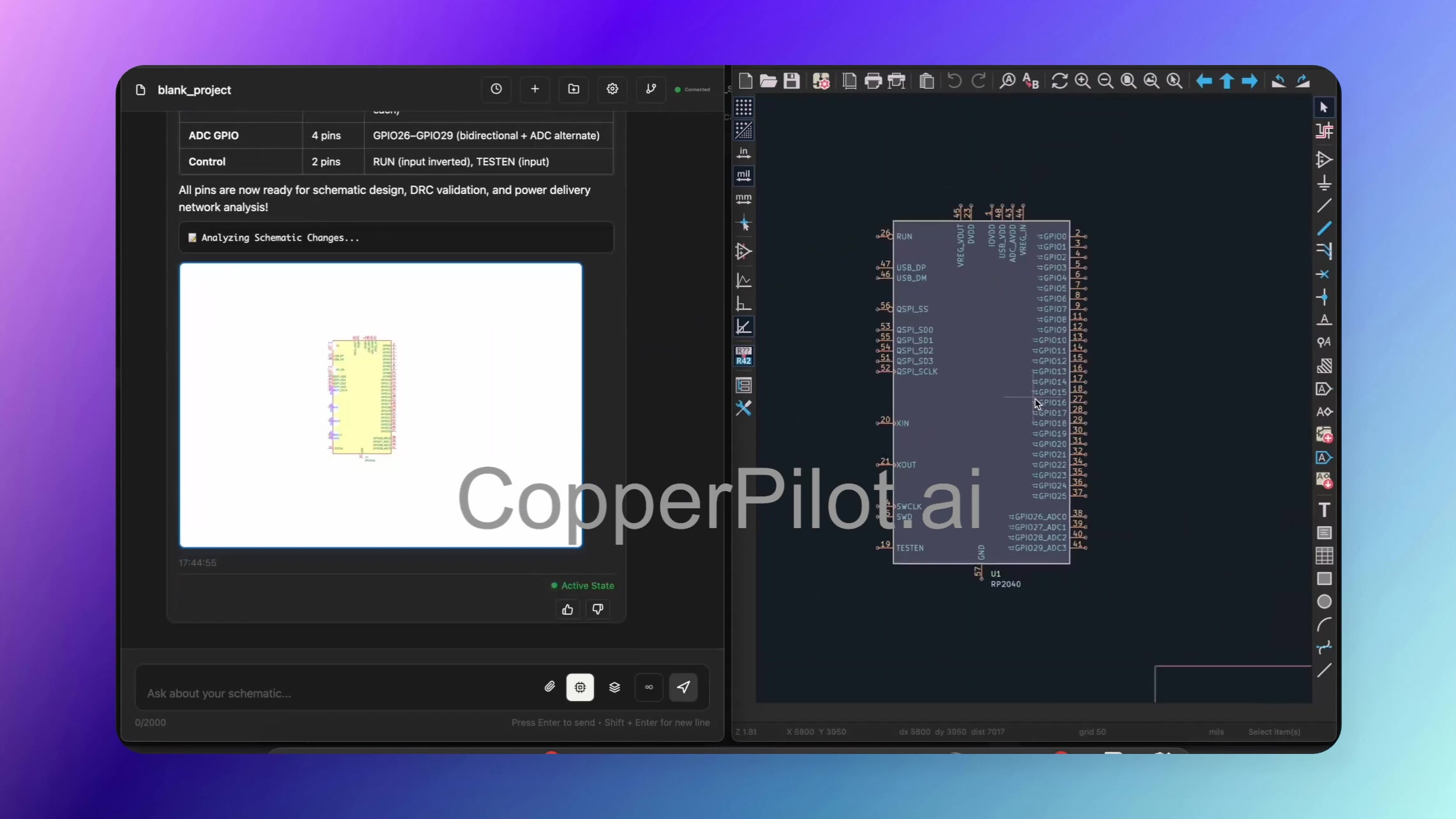
Learn how to use CopperPilot to explore pin functions and alternate functions for microcontrollers.
This tutorial focuses on the RP2040 as an example, which boasts a myriad of pins, many of which have
multiple functions. CopperPilot can help you create datasheet summaries and automatically assign
pin functions and alternates to your schematic.
Overview
Many microcontrollers, like the RP2040, have pins with multiple functions that aren’t always
assigned by default in symbol libraries. Clock pins and various other pins may sport different
functions that need to be properly configured. CopperPilot streamlines this process by analyzing
datasheets and automatically assigning pin functions and their alternates.
What You’ll Learn
- How to create datasheet summaries for microcontrollers
- Automatically assigning pin functions and alternate functions
- Understanding different pin function categories (power, clock, USB, GPIO, ADC)
- Reviewing changes via visual diffs
- Accessing and verifying pin functions in KiCad’s interface
How It Works
-
Create Datasheet Summary: Prompt CopperPilot to create a datasheet summary
for your microcontroller (e.g., “Create a datasheet summary for the RP2040”). CopperPilot will
sift through the datasheet and generate a comprehensive table outlining all the pins, their
functions, signal type, voltage, and criticality. This provides a quick overview of all available
pin functions. -
Review Citations: CopperPilot provides a list of citations showing where it
pulled information from within the datasheet, giving you confidence in the accuracy of the summary. -
Assign Pin Functions: Instruct CopperPilot to take the datasheet summary and
assign pin functions and alternates to your component. CopperPilot initiates a series of tool
calls to assign functions including:- Power and control lines
- Power inputs and outputs
- Clock inputs and outputs
- USB interface pins
- GPIO pins
- ADC pins
-
Review Summary Table: CopperPilot presents a neat table summarizing all the
work it has done, showing which pin functions have been assigned across different categories. -
Visual Diff: CopperPilot provides a diff that visually highlights any changes
made to your schematic, making it easy to see what was updated. -
Verify in KiCad: After reloading the schematic, you can verify that pin
functions have been properly assigned. All pin functions and alternates are accessible through
KiCad’s interface. You can double-click pins to review their functions, and all alternate
functions are available via dropdown menus.
Key Features
- Automatic pin function assignment from datasheet analysis
- Comprehensive pin function tables with signal types and voltages
- Citation tracking for datasheet references
- Visual diff highlighting changes
- Full integration with KiCad’s pin function system
This tutorial demonstrates how CopperPilot streamlines the process of assigning pin functions,
saving you time and ensuring accuracy when working with complex microcontrollers that have many
pins with multiple functions.